> ## Documentation Index
> Fetch the complete documentation index at: https://runpod-b18f5ded-docs-runpod-allow-ip.mintlify.site/llms.txt
> Use this file to discover all available pages before exploring further.
> ## Agent Instructions
> If this page is missing information, contains outdated instructions, or doesn't fully answer the user's question, use the feedback tool to report it. In your feedback, be specific about what's missing, what appears out of date, or what needs to be corrected or updated, so the docs team can act on it directly.
# Connect AI coding tools with Public Endpoints
> Configure AI coding tools like OpenCode, Cursor, and Cline with Runpod Public Endpoints. Review setup and request guidance for Runpod Public Endpoints.
Runpod's [Public Endpoints](/public-endpoints/overview) provide OpenAI-compatible APIs that are compatible with most AI coding assistants. This page shows you how to configure OpenCode, Cursor, and Cline to use Runpod's Public Endpoints as a model provider.
## Requirements
Before you start, you'll need:
* A [Runpod account](/accounts-billing/manage-accounts) with an [API key](/get-started/api-keys), and at least \$5 in Runpod credits.
* One or more of the following AI coding tools installed on your local machine:
* [OpenCode](https://opencode.ai/): Terminal-based AI coding assistant.
* [Cursor](https://cursor.com/): AI-powered code editor.
* [Cline](https://marketplace.visualstudio.com/items?itemName=saoudrizwan.claude-dev): VS Code extension for AI-assisted coding.
## Available endpoints
Runpod provides two Public Endpoints that can be used to power AI coding tools:
| Model | Base URL | Model ID | Context window |
| ----------------------------------------------------- | -------------------------------------------------- | --------------------- | -------------- |
| [GPT OSS 120B](/public-endpoints/models/gpt-oss-120b) | `https://api.runpod.ai/v2/gpt-oss-120b/openai/v1` | `openai/gpt-oss-120b` | 131,072 tokens |
| [Qwen3 32B AWQ](/public-endpoints/models/qwen3-32b) | `https://api.runpod.ai/v2/qwen3-32b-awq/openai/v1` | `Qwen/Qwen3-32B-AWQ` | 32,768 tokens |
Both endpoints follow the OpenAI API specification, so they work with any tool that supports custom OpenAI-compatible providers.
Many AI coding tools can be configured to use any [OpenAI-compatible](/serverless/vllm/openai-compatibility) model API. You can build your own OpenAI-compatible endpoint with [Runpod Serverless](/serverless/overview).
## Configure OpenCode
OpenCode supports multiple provider configurations, so you can set up both Runpod endpoints and switch between them.
OpenCode looks for its config at `~/.config/opencode/opencode.json`. Run this command to create the directory (if it doesn't exist) and generate the config file:
```json theme={null}
mkdir -p ~/.config/opencode && cat << 'EOF' > ~/.config/opencode/opencode.json
{
"$schema": "https://opencode.ai/config.json",
"provider": {
"runpod-gpt": {
"npm": "@ai-sdk/openai-compatible",
"name": "Runpod GPT OSS 120B",
"options": {
"baseURL": "https://api.runpod.ai/v2/gpt-oss-120b/openai/v1",
"apiKey": "{env:RUNPOD_API_KEY}"
},
"models": {
"gpt-oss-120b": {
"id": "openai/gpt-oss-120b",
"name": "GPT OSS 120B (Runpod)",
"limit": { "context": 131072, "output": 4096 }
}
}
},
"runpod-qwen": {
"npm": "@ai-sdk/openai-compatible",
"name": "Runpod Qwen3",
"options": {
"baseURL": "https://api.runpod.ai/v2/qwen3-32b-awq/openai/v1",
"apiKey": "{env:RUNPOD_API_KEY}"
},
"models": {
"qwen3-32b": {
"id": "Qwen/Qwen3-32B-AWQ",
"name": "Qwen3 32B AWQ (Runpod)",
"limit": { "context": 32768, "output": 4096 }
}
}
}
}
}
EOF
```
The `{env:RUNPOD_API_KEY}` syntax in the config file tells OpenCode to read your [API key](/get-started/api-keys) from the `RUNPOD_API_KEY` environment variable.
Run this command to set the environment variable, replacing `rpa_YOUR_API_KEY` with your actual API key:
```bash theme={null}
export RUNPOD_API_KEY="rpa_YOUR_API_KEY"
```
This only sets the environment variable for your current shell session. You can add the export command to your shell profile (`~/.bashrc`, `~/.zshrc`, etc.) so you don't need to set the environment variable every time you open a new shell.
Run this command to check that the configuration is working:
```bash theme={null}
opencode models
```
You should see output similar to this:
```text highlight={7-8} theme={null}
opencode/big-pickle
opencode/glm-4.7-free
opencode/gpt-5-nano
opencode/kimi-k2.5-free
opencode/minimax-m2.1-free
opencode/trinity-large-preview-free
runpod-gpt/gpt-oss-120b
runpod-qwen/qwen3-32b
```
After confirming that the Runpod endpoints are listed, you can start OpenCode and try out the Runpod endpoints.
```bash theme={null}
opencode
```
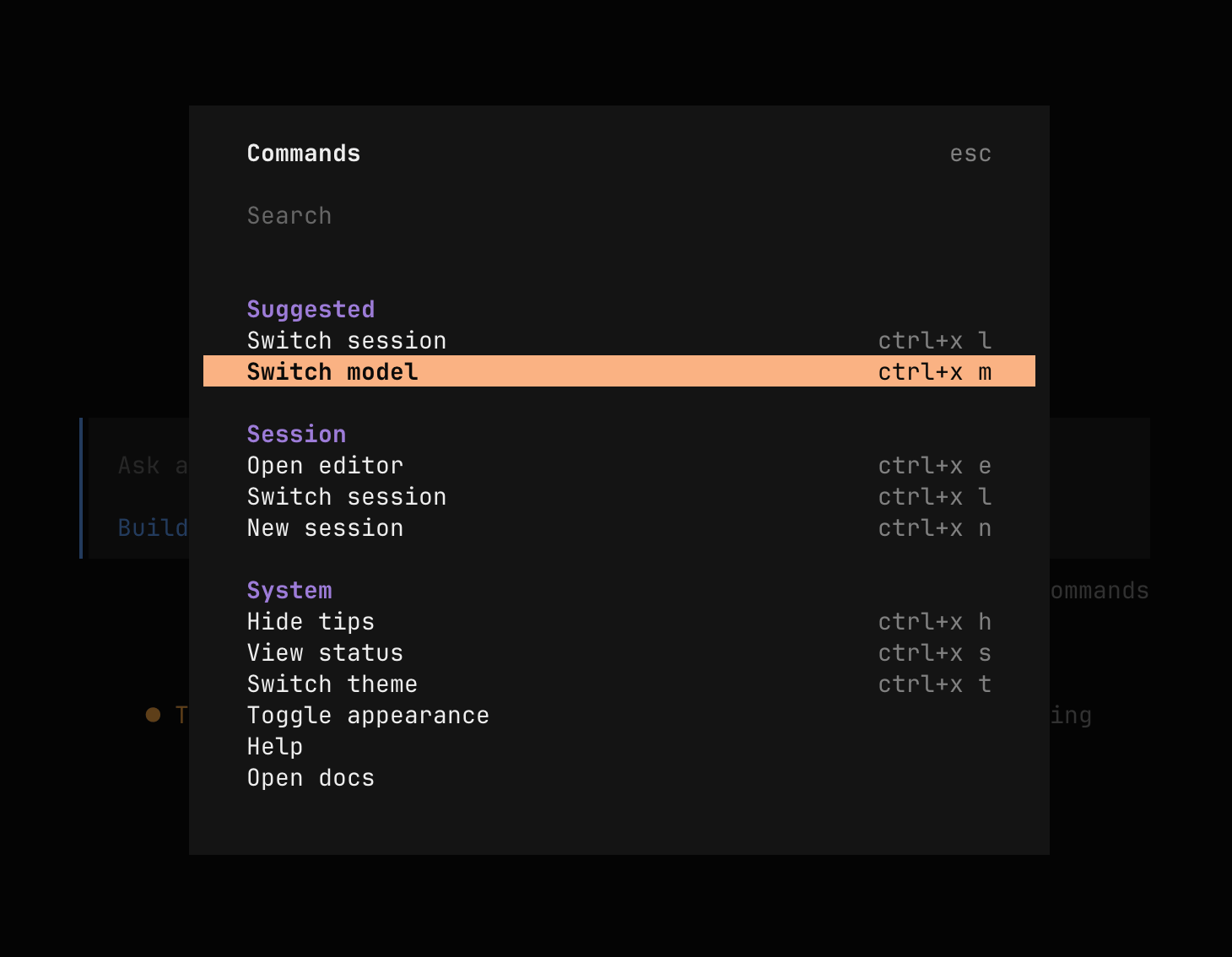
Press Ctrl + p to open the command palette and select **Switch model** to select a Runpod endpoint.
 ## Configure Cursor
Cursor supports a single global OpenAI-compatible endpoint override, so you can only use one Runpod endpoint at a time.
The Qwen3 32B AWQ endpoint is not compatible with Cursor.
Launch Cursor and press Shift + Cmd + J (macOS) or Shift + Ctrl + J (Windows/Linux) to open Settings.
Go to **Cursor Settings > Models** and expand the **API Keys** section.
## Configure Cursor
Cursor supports a single global OpenAI-compatible endpoint override, so you can only use one Runpod endpoint at a time.
The Qwen3 32B AWQ endpoint is not compatible with Cursor.
Launch Cursor and press Shift + Cmd + J (macOS) or Shift + Ctrl + J (Windows/Linux) to open Settings.
Go to **Cursor Settings > Models** and expand the **API Keys** section.
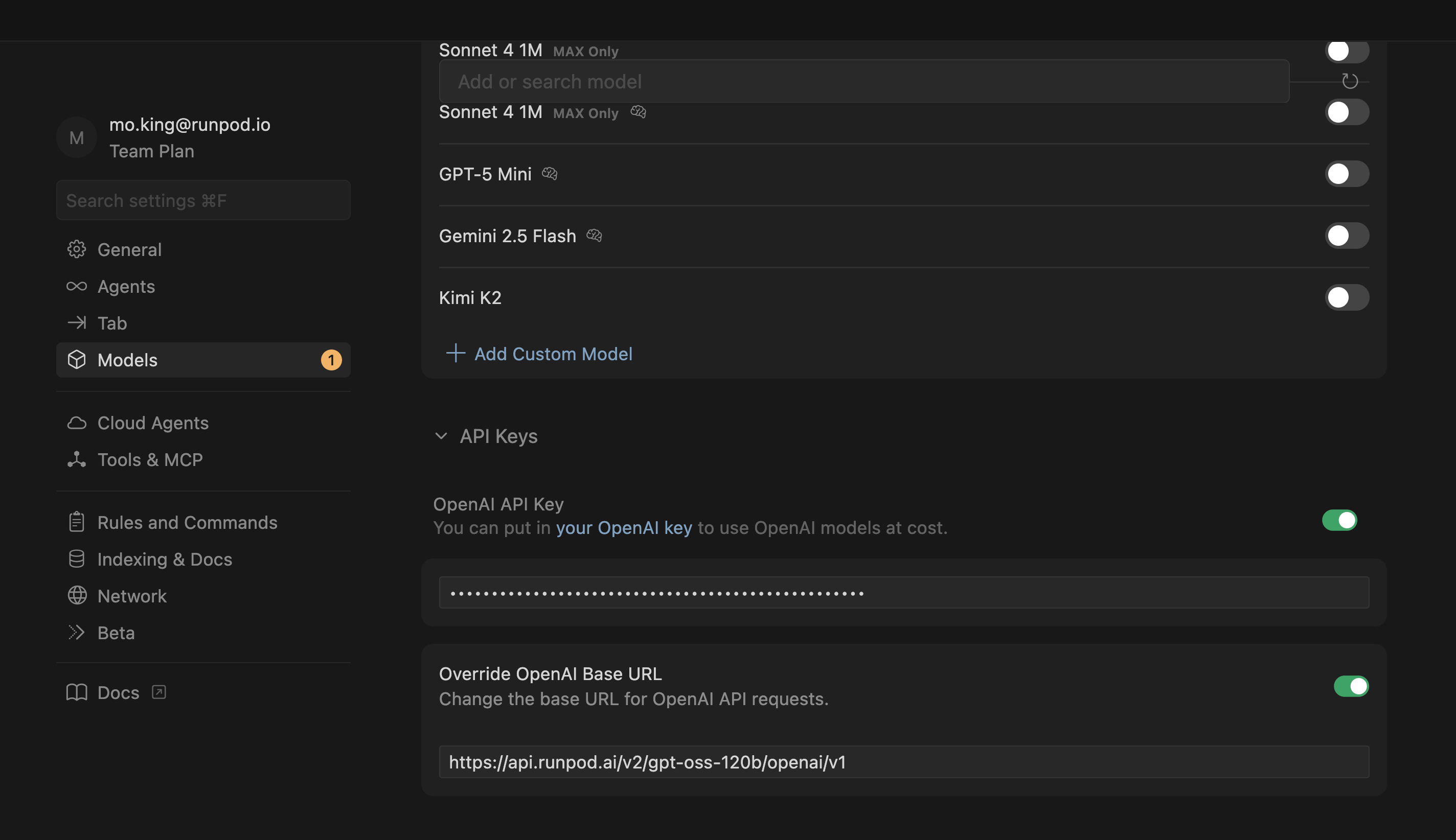 Find the **OpenAI API Key** field. Enable it, then enter your Runpod API key (`rpa_...`).
Enable **Override OpenAI Base URL** and enter:
```text theme={null}
https://api.runpod.ai/v2/gpt-oss-120b/openai/v1
```
Scroll up and click **View All Models** to see the list of available models.
Click **Add Custom Model** and enter the model ID exactly as shown (case-sensitive):
```text theme={null}
openai/gpt-oss-120b
```
Select `openai/gpt-oss-120b` from the model list when using Cursor's AI features.
## Configure Cline
Cline is a VS Code extension with its own settings panel. Unlike Cursor, Cline supports multiple provider profiles, so you can configure both Runpod endpoints and switch between them.
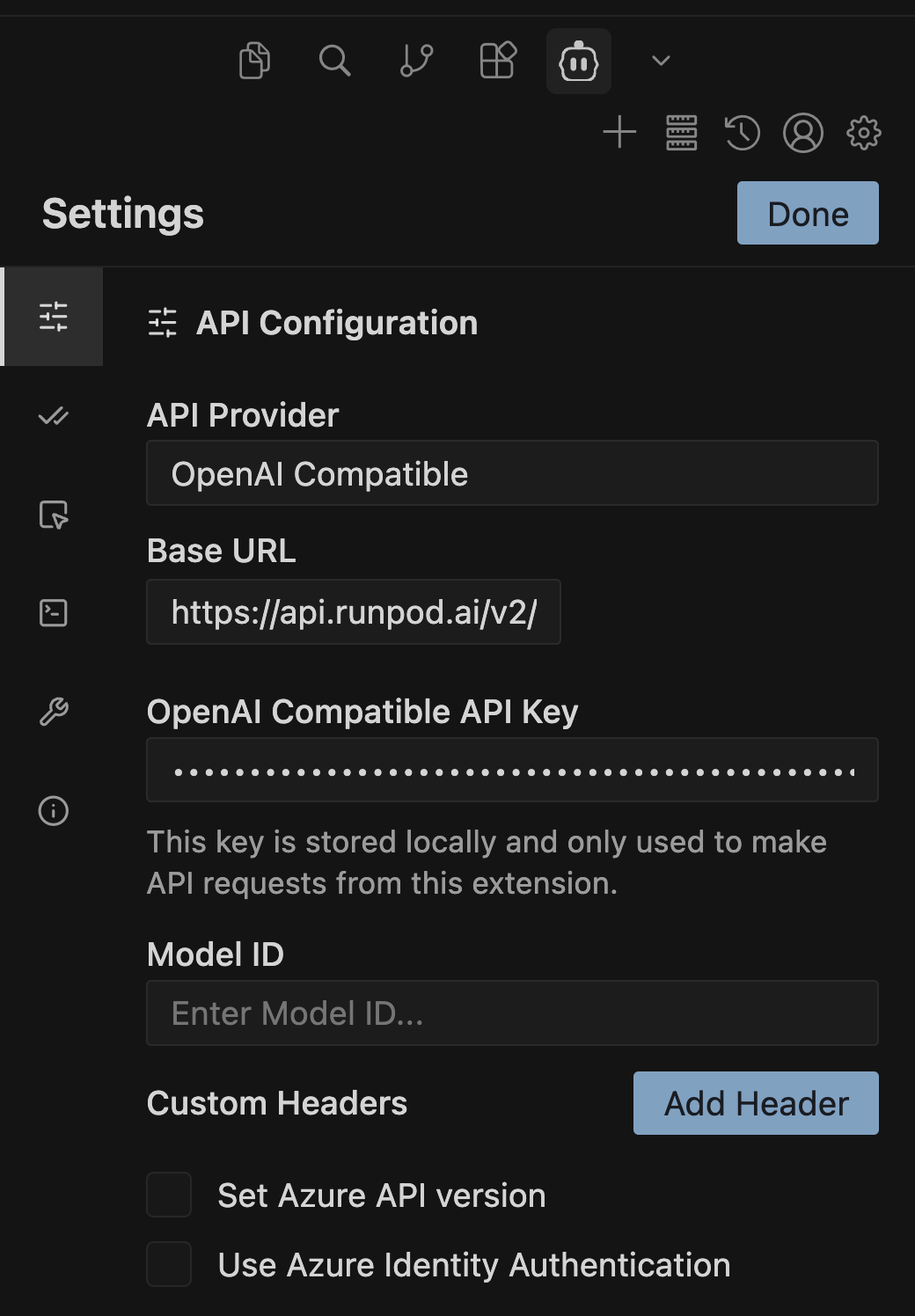
Click the Cline icon in the sidebar to open the Cline panel, then click the gear icon to open Settings.
Set **API Provider** to **OpenAI Compatible**.
Fill in the following fields:
| Setting | Value |
| -------- | ------------------------------------------------- |
| Base URL | `https://api.runpod.ai/v2/gpt-oss-120b/openai/v1` |
| API Key | `rpa_YOUR_API_KEY` |
| Model ID | `openai/gpt-oss-120b` |
Find the **OpenAI API Key** field. Enable it, then enter your Runpod API key (`rpa_...`).
Enable **Override OpenAI Base URL** and enter:
```text theme={null}
https://api.runpod.ai/v2/gpt-oss-120b/openai/v1
```
Scroll up and click **View All Models** to see the list of available models.
Click **Add Custom Model** and enter the model ID exactly as shown (case-sensitive):
```text theme={null}
openai/gpt-oss-120b
```
Select `openai/gpt-oss-120b` from the model list when using Cursor's AI features.
## Configure Cline
Cline is a VS Code extension with its own settings panel. Unlike Cursor, Cline supports multiple provider profiles, so you can configure both Runpod endpoints and switch between them.
Click the Cline icon in the sidebar to open the Cline panel, then click the gear icon to open Settings.
Set **API Provider** to **OpenAI Compatible**.
Fill in the following fields:
| Setting | Value |
| -------- | ------------------------------------------------- |
| Base URL | `https://api.runpod.ai/v2/gpt-oss-120b/openai/v1` |
| API Key | `rpa_YOUR_API_KEY` |
| Model ID | `openai/gpt-oss-120b` |
 Click **Save** to apply your settings.
To use Qwen3 instead, use these values:
| Setting | Value |
| -------- | -------------------------------------------------- |
| Base URL | `https://api.runpod.ai/v2/qwen3-32b-awq/openai/v1` |
| Model ID | `Qwen/Qwen3-32B-AWQ` |
Click **Save** to apply your settings.
To use Qwen3 instead, use these values:
| Setting | Value |
| -------- | -------------------------------------------------- |
| Base URL | `https://api.runpod.ai/v2/qwen3-32b-awq/openai/v1` |
| Model ID | `Qwen/Qwen3-32B-AWQ` |